Subscribe by RSS RSS Icon
Showing posts with label how to. Show all posts

Rooting and flashing ROM on a HTC Desire

It’s gona be an year since I got my HTC Desire and I realized, I still haven’t really got the most out of it, so I finally decided to root my phone, and get a custom ROM for my Android.

What is rooting?

'root' is actually the user account that has full access to all commands and files on a Linux operating system. Since, Android is based on Linux kernel, gaining root gives you full control over your Android and this process is called rooting. iPhone users call this jailbreaking ;)

So why root?

  1. Install custom ROMs
    There are many ROMs which are customized for many improvements such as speed and performance. For example, the popular CyanogenMod, created by one of Android's most notable hackers, optimizes performance for both the G1 and MyTouch 3G handsets. (readwriteweb.com)
  2. Overclocking
    Overclocking sets the clock rate for the processor for speed or to save battery, but do with caution, it could damage your phone. SetCPU allows overclocking your Android, and it also has different power schemes.
  3. Increase your internal memory
    A2SD+ allows to install applications on a Linux partition (ext2, ext3, ext4) on your SD card, which behaves as your internal memory. It can be done by creating a partition using Linux or using ROM Manager. Most custom ROMs comes with A2SD+ support.
  4. Move applications to SD card
    This feature is already included in Froyo (Android 2.2), which allows some applications to be moved to SD card.
  5. Titanium Backup
    Titanium Backup allows to backup, restore, and freeze your applications with its data, including protected applications.
  6. Nandroid backup
    Nandroid allows to take full system backup and also restore them using recovery mode such as ClockworkMod Recovery.
  7. MarketAccess
    MarketAccess gives access to applications including paid ones, which are not available in your country or operator, by emulating the SIM card of a chosen operator.
  8. Wifi tethering
    Allows to tethering your 3G/2G internet via Wifi or bluetooth from your Android. Wifi tethering feature is also now included in Froyo (Android 2.2) as Wi-Fi Hotspot.
  9. Take screen shots!
    I know, stupid isn't it? You can't even take a screen shot without root access. See market for screen shot applications.
  10. Install custom themes, addons, and more!
  11. Because you can! :D
    Seriously, wouldn't you want to see your phone's full capability? Now that I've 11 reasons to root, I should totally root my phone! Of cause it'll void my warranty, but its only a small chance to screw up my phone, and I'm willing to take that chance.

Getting ready to root

Making backup

Before you root, don’t forget to backup your data, unless you’re going to completely wipe everything and skip this step ;)
If you’re using your Google account for your contacts, calendar and mail, you don’t need to worry about them because it’ll come back after you sync again. Other than that, you might want to backup your messages, call log and other application data. There are a couple of good applications in the market for that, such as SMS Backup & Restore, Backup Everything, and Astro File Manager. You might want to backup your SD card too just in case ;)

Warning: by rooting, you’re voiding your warranty, and I won’t be responsible for any damage that you may cause to your phone, so use this at your own risk :)

Rooting has now become pretty much easier as just a few clicks – thanks to Unrevoked! Although there’s a small possibility to get your phone bricked, it’s still ALMOST impossible so let’s not worry about that now eh? ;) This method usually works for most of the HTC phones (see Unrevoked), and for other Android phones check out XDA-Developers :) Before begin to root, make sure your phone is fully charged. Alright, let’s get on with it!

Installing HTC drivers

  1. Download HTC Sync (mirror: HTC Sync for all HTC Android phones v3.0.5511) software for your phone from HTC website.
  2. Run the installation, and install the required items.
  3. We just only need the HTC drivers (adb drivers) for now, so cancel the installation of HTC Sync after installing the required items. If you’ve already installed HTC Sync, make sure you uninstall it before proceeding to prevent interference with the rooting process.

Installing HBOOT driver

Click here for video walk through on how to install HBOOT drivers.

  1. Download the modified HBOOT USB drivers (mirror), and extract it somewhere.
  2. Turn off your phone, connect your phone to your computer with your USB cable, boot into HBOOT by holding volume down button and power button, and wait for the HBOOT USB PLUG message on the screen.
  3. Open Device Manager on your computer by right clicking on Computer, click Properties, then Device Manager.
  4. Right click on the Android 1.0 and select Update Driver Software.
  5. Select Browse my computer for the driver software, browse to the extracted HBOOT driver folder, then click Next. If you get any warnings during the install, just click OK. Once the driver is installed, click Close. You can turn your phone back on, by removing the battery and power on the phone.

...and finally...rooting!

Click here for a video walk through of on how to flash.
  1. Go to Unrevoked website, choose your phone and download the reflash package (mirror: v3.32).
  2. Plug your phone to your computer with your USB cable and make sure the connection is in Charge Only mode.
  3. Turn on USB Debugging mode by going to Settings > Applications > Development > and check the USB Debugging.
  4. Run the reflash application and sit back. Your phone will restart a couple of times. Do not turn off your phone or interfere the process.
  5. That’s it! You’re now rooted!

Flashing ROM/radio

First of all, I wanted to try the new Gingerbread (Android 2.3), so I flashed the CyanogenMod 7, which is still in development (nighty). CyanogenMod releases doesn't have the HTC Sense UI, and I like the Sense UI better so I decided to go back to a Froyo (Android 2.2) ROM with Sense UI. I did a couple of research in XDA-Developers forum and found out most users prefer LeeDroid.
Since now its rooted, it's possible to flash custom ROMs and radio. Flashing ROM and radio is pretty easy to do after you've rooted using Unrevoked, since it installs ClockworkMod Recovery also with it.

Backup (Nandroid)

Before flashing a ROM its safe to take a backup, just in case if something wrong. ClockworkMod Recovery allows you to take a full Nandroid backup of your phone.
  1. Turn off your phone, press volume down and power button, and it'll take you to HBOOT menu.
  2. Go to Recovery by pressing volume down, and press power button to select. Once you're in ClockworkMod Recovery menu, use your trackpad to scroll and select.
  3. Go to backup and restore, select backup, and it'll backup the whole phone which can be later recovered using the recover option.

Anyways, lets flash a ROM now!

  1. Download LeeDroid ROM or any ROM you prefer. You can find many ROMs in XDA-Developers forum ;)
  2. Download the latest radio (mirror: 32.49.00.32U_5.11.05.27).
  3. Copy the ROM and radio file into your SD card.
  4. Turn off your phone, press volume down and power button, and it'll take you to HBOOT menu.
  5. Go to Recovery by pressing volume down, and press power button to select. Once you're in ClockworkMod Recovery menu, use your trackpad to scroll and select.
  6. Select Wipe data/factory reset, and Wipe cache partition too.
  7. Select Install zip from SD card, Choose zip from SD card, and then select your ROM file.
  8. The ROM installation will take place.
  9. After ROM installation is over, go to Choose zip from SD card again, and run the radio installation.
  10. Go back and select Reboot your phone.

...and that's it! Happy rooting! :D

Check out the Everything Desire index for more hacks, ROMs, radio, themes, and updates at XDA-Developers.

Thanks to:
Google and HTC for the awesome phone
Unrevoked for the painless root
LeoDroid for the awesome ROM
RMD for the rooting guide
djR3Z for the walk through video

Too lazy to upload...why dont you do that for me? ^^

Uploading to RapidShare could be sometimes a pain in the ass. I used to use the RapidUploader and the RapidShare Manager to upload files. It takes like almost a day to upload a whole movie with some connection errors and so on... >.> So i figured another way by uploading to another server by FTP, and using remote upload to download those files into my RS account. I think its a pretty effective way to upload files to RS, just in case if those files were deleted or reported and you had to reupload it. Using the same idea, i thought why not remote upload those files directly from my PC! =D So, i used XAMPP as my web server, moved all the files into the web server and added the links into the remote upload list. It worked! ^^ ...of cause it'd work! :P RapidShare downloads 5 jobs simultaneously, and my upload speed is 0.5mb/s. After sometime i got this message saying the downloads have been aborted as it has exceeded 3 hours >.> I used 200mb files, so i changed them to 100mb files and then it worked perfectly! ^^
...on my way uploading Assassin's Creed II =D

How to make your own Counter Strike dedicated server on windows

It’s been a year already since I started playing Counter Strike and most of the times I play with my friends on my dedicated server hosted in my computer. So, here is a complete guide for all you guys who want to make your own Counter Strike (CS) dedicated server on windows, starting from installing and configuring CS, till making a web based ranking system. It doesn’t matter if it’s a pc or a laptop, as long as it has xp or vista. I haven’t tried it on windows 7, but I think it should.

Before we begin, these are the stuffs we’re gona cover in this guide:
  • Installing Counter-Strike: Source
  • Creating the server
  • Configuring the server
  • Installing Mani Admin Plugin (optional)
  • Intalling Metamod:Source
  • Intalling SourceMod
  • Installing Xampp
  • Intalling ActivePerl and DBD-mysql
  • Installing and configuring HLstatsX: CE
  • A bit of port forwarding
This guide contains two parts. Making the CS server and making the webhost. Okay, so now let’s get it started! ;)

Installing and configuring the CS server
  1. Download and install Counter-Strike: Source (installation instructions will be included). Let’s assume that you’ve installed in C:\Program Files\Counter-Strike Source\
  2. Go to C:\Program Files\Counter-Strike Source\ and look for srcds.exe. Right click and sent to desktop, which makes a shortcut on the desktop.
  3. Go to desktop, rename the srcds.exe shortcut to server, right click on it and go to properties.
  4. In the shortcut tab, add this line in the target field after the srcds.exe" part:
    -console -game cstrike +maxplayers 30 +map de_dust2 -secure

    shortcut

    -console: tells it to run as the console command interface, instead of the GUI, which takes more load than console.
    +maxplayers 30: how many players can join the game, in this case its 30.
    +map de_dust2: which map the server is going start with, in this case its de_dust2.
    -secure: secure the server with Valve Anti Cheat (VAC).
  5. Now it’s time make some basic settings for your server by using the server.cfg file in your C:\Program Files\Counter-Strike Source\cstrike\cfg\. If you don’t have that files, you can create it by using a cfgmaker to help you to generate it easily.
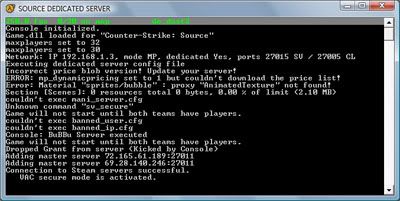
  6. Go to desktop and run the server shortcut. It should show up the console like the command prompt and starts to load some stuffs. If something goes wrong, go back to the step 4. After loading all those stuffs, run your Counter-Strike game, find your server in the LAN tab and join. Play around a bit; it’s just to check whether it works ;) So, basically your dedicated CS server is up and running on LAN, but it might not work through internet, when your friends try to join. Don’t worry; we’ll cover it up later. Shutdown the server by typing, exit in the console.
  7. This is an optional step, you may skip to step 9. Mani Admin Plugin makes it easier to manage the server, like kick, ban, change map, slap and more. Download Mani Admin Plugin and extract it into C:\Program Files\Counter-Strike Source\cstrike\. Go to your C:\Program Files\Counter-Strike Source\cstrike\addons\, open CreateVDF.exe, select cstrike and save it as mani_admin_plugin.vdf.
  8. Run the server and let everything gets loaded. If the server crashes, go back to step 7 and try installing a previous version of Mani Admin Plugin like v1.2 Beta O. After the server loads everything, to check whether Mani Admin Plugin was loaded, type:
    plugin_print
    ...and it should show something like:
    mani admin
    …or if it doesn’t, something is wrong with your installation. For troubleshooting, configuration and commands check the documentation. You can shutdown the server now.
  9. In order to make the HLstatsX in game ranking system to work, you need to have SourceMod, and SourceMod requires Metamod:Source. So let’s download Metamod:Source, installation instructions and troubleshooting can be found in AlliedModders Wiki.
  10. Download SourceMod and extract it into C:\Program Files\Counter-Strike Source\cstrike\. To check whether the addons are loaded, run your server and type:
    meta list
    …and it should show this line:
    meta list
    If it works, shutdown the server and proceed to next step, and if it doesn’t work, go back to step 9 or check out the AlliedModders Wiki.
  11. Download the HLstatsX: CE, extract it somewhere, and copy the sourcemod folder into C:\Program Files\Counter-Strike Source\cstrike\addons\.
The game server is now ready, and it’s time to setup the web server part now ;)

Installing and configuring the web server
  1. I’m gona’ use Xampp as the web server pakage. Download and install Xampp as to the instructions.
  2. “HLstatsX Community Edition uses a Perl daemon to parse the log streamed from the game server”, so Perl has to be installed. You can use the Perl addon for Xampp, or use ActivePerl to run the perl scripts. I use ActivePerl and I recommend using it :)
  3. Open up Perl Package Manager (PPM) by typing ppm in the run. Search for dbd-mysql in the PPM, right click on it and install. Go to file, Run Marked Actions and you’re done!
    ppm
  4. Copy the web folder from the extracted HLstatsX file, into htdocs of your Xampp web server. Rename the folder to stats.
  5. I assume that your web server is working by now. So, go to http://localhost/phpmyadmin/ and make a new database. The username is root and there is no password by default. Let’s call this database, hlstatsx.
  6. Click on the hlstatsx database on the left side which you created, and go to the 'Import' tab on the top. Under the ‘File to import’, browse to the extracted HLstatsX folder, \sql\install.sql and ‘Go’.
  7. Open config.php, in your web server stats folder, with a notepad. Edit the file to match your settings:
    define("DB_NAME", "hlstatsx");
    define("DB_USER", "root"); - the default xampp username
    define("DB_PASS", ""); - the default xampp password is *none*
  8. Go to http://localhost/stats/hlstats.php?mode=admin and login as admin, with 123456 as the password. Add your server under game settings and play around a bit with the HLstatsX: CE settings.
    Server Address: your internal network IP
    Server Port: 27015
    Server Name & Rcon Password: See your server.cfg
    Game Mod: Sourcemod
  9. Go to your C:\Program Files\Counter-Strike Source\cstrike\cfg\ and open autoexec.cfg with a notepad. Add the following lines:
    log on
    logaddress_delall
    logaddress_add IP:PORT

    your IP will be the internal IP and the port can be 27500.
  10. Copy the perl folder from the extracted HLstatsX to the stats web server folder. Open hlstats.conf with a notepad and edit it to match your settings:
    DBHost "localhost"
    DBUsername "root"
    DBPassword ""
    DBName "hlstatsx"
    Port 27500
  11. Open up notepad and paste the following line:
    perl hlstats.pl
    ..save it as hlx_run.cmd in that folder. You may create a shortcut for the hlx_run.cmd in your desktop for easy use. Try running it. If it shows an error and closes, try checking your hlstats.conf, or if there is no error and if it doesn’t closes, it’s working!
Your game server and web server is now ready, but still you’re not done yet! ;) The last part is to open or forward your ports. To do that, you’ve to login into your router and set the ports. Most of the routers have the configuration for the web server and for Counter-Strike too, but if you don’t have or you don’t know, you can go to PortForward.com to get it done :)
For Counter-Strike server:
Protocol / Port start - Port end / Port Map
UDP / 1200-1200 / 1200
UDP / 27000-27015 / 27000
TCP / 27020-27039 / 27020

For web server:
Protocol / Port start - Port end / Port Map
TCP / 80-80 / 80
TCP / 443-443 / 443
You can check whether your web server is working by going to Hidemyass.com, enter your external IP and browse. You can get your external IP by going to Whatismyip.com. If you can access, that means its working! Once you are done, it’s time to finally start the server.
  1. Run the hlx_run and the CS server shortcut from the desktop.
  2. Run your CS game, join your server and add some bots.
  3. Minimize the game, go to http://localhost/stats/ and check the players and played times whether it matches. If it does, it’s working correctly, if it doesn’t, go back and check your steps carefully, because something is really screwed up!
  4. Tell your friends your IP and let the fun begin! :D If your IP is dynamic, its’ kinda annoying when your IP changes every time. So, you can use a free DNS service like afraid.org, which has many different kewl domains and they have a free DNS updating software so that, when every time your IP changes, it updates your DNS settings.
So, this is it! I hope this guide helped to make your own CS dedicated server and also about the web server too. If you have any questions, please drop a comment.
 
Copyright Info.

Copyright 2009 sykez
Powered by Blogger and BTemplates

Partners
Other Links
XHTML/CSS validations
Valid XHTML 1.0 Transitional Valid CSS!