Posted on Sunday, July 04, 2010 at 7/04/2010 04:12:00 PM
in
games,
rapidshare,
warez
by
|[ sykez ]|
"Marking the next-gen console debut of Ubisoft's critically acclaimed series, Prince of Persia - The Forgotten Sands is the next chapter in the Sands of Time universe. Visiting his brother's kingdom following his adventure in Azad, the Prince finds the royal palace under siege from a mighty army bent on its destruction. His brother Malik decides to use the ancient power of the Sand in a desperate gamble to save the kingdom from total annihilation. To save the kingdom, the Prince must embark on an epic adventure in which he will learn to bear the mantle of true leadership, and that great power often comes with a great cost." (prince-of-persia.us.ubi.com)
Check out the gameplay trailer ;)
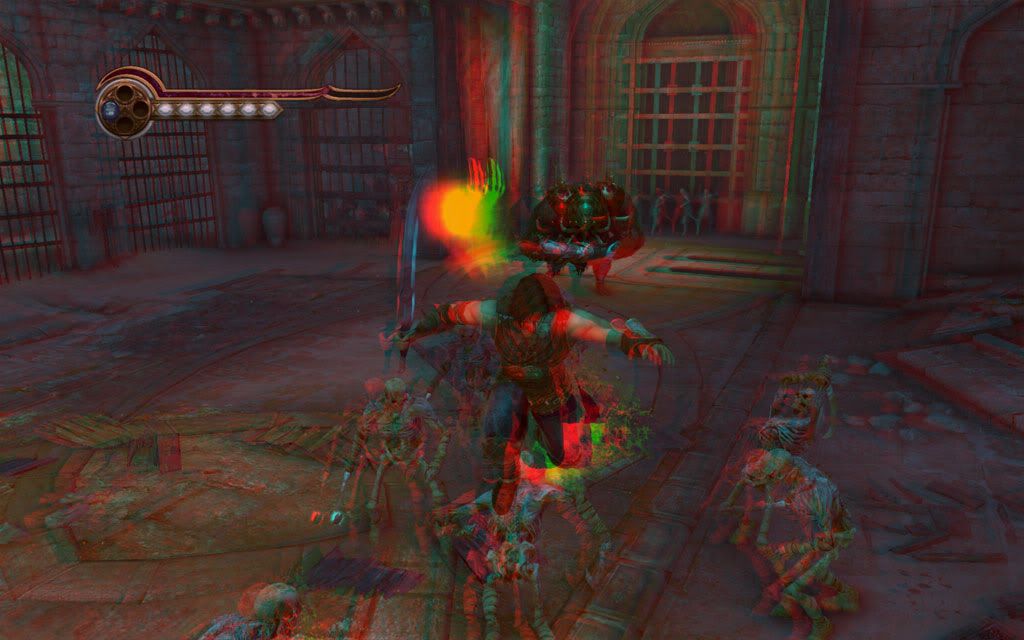
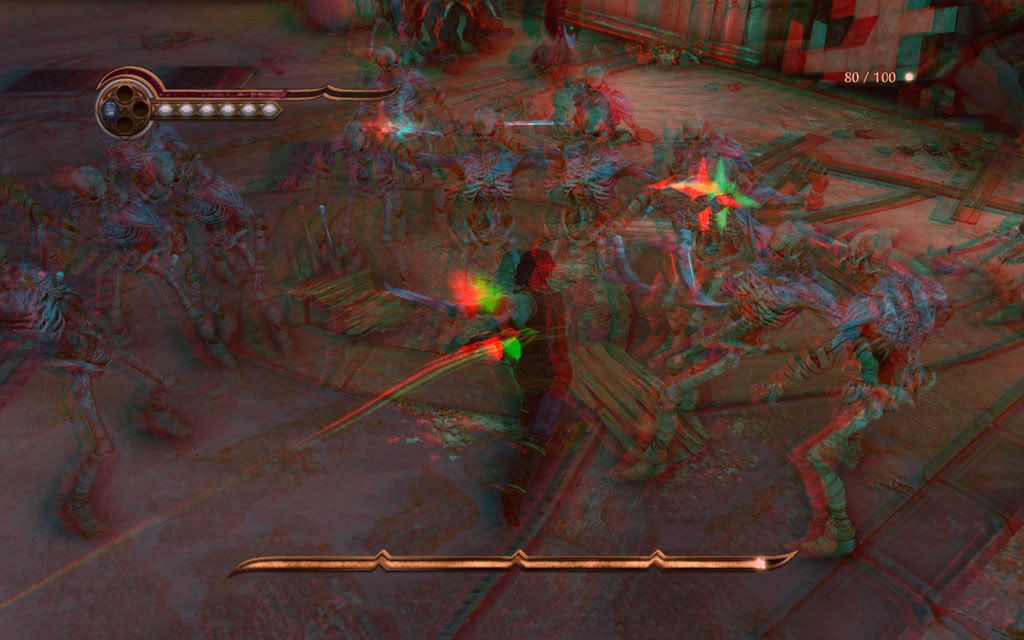
Prince of Persia also supports 3D and it's been rated as 'Excellent' by Nvidia. I've tested this with Nvidia 3D Vision Discover, and it works perfectly without any lags! Check out the 3D screen shots below and of cause, these wont work without a 3D glasses ;)
Language: MULTi9 (ENG/SPA/ITA/FRE/DUT/GER) ISO size: 5.60GB ISO MD5: 039c8700d1a0606093fd1f93dd3e0996
1. Extract the .rar files 2. Mount pop_tfs.iso or burn it. I prefer mounting using Daemon Tools 3. Install 4. Copy all the files from the Crack folder and paste it in the Prince of Persia The Forgotten Sands installation folder
* 32 bit version: C:\Program Files\Ubisoft\Prince of Persia The Forgotten Sands
* 64 bit version: C:\Program Files (x86)\Ubisoft\Prince of Persia The Forgotten Sands
Posted on Saturday, May 22, 2010 at 5/22/2010 12:30:00 AM
in
games,
rapidshare,
warez
by
|[ sykez ]|
Finally...Assassin's Creed II! Yes, i know its been a while now...it was released in March and i had to wait for a crack. The crack was released in April when i was in Male' with a crappy laptop, so now i'm back in KL with my PC, and i'm addicted! ^^
Assassin's Creed II is the second game of the Assassin's Creed series from Ubisoft. Assassin's Creed II was given the Best Action Adventure Game of the Year by IGN, Game of the Year by New York Times, GamePro, Eurogamer, and was also nominated to several other awards too. The game starts right from the point where the Assassin's Creed (I) ended. Desmond finally escapes from Abstergo with Lucy, an employee in Abstergo and also an Assassin, bringing him into her secret hideout where he meets other two Assassins. Desmond agrees to help them by discovering Ezio Auditore da Firenze's memories to find the Pieces of Eden and to gain Ezio's skills through the bleeding effect using their own version of Animus, the Animus 2.0.
Check out the gameplay trailer
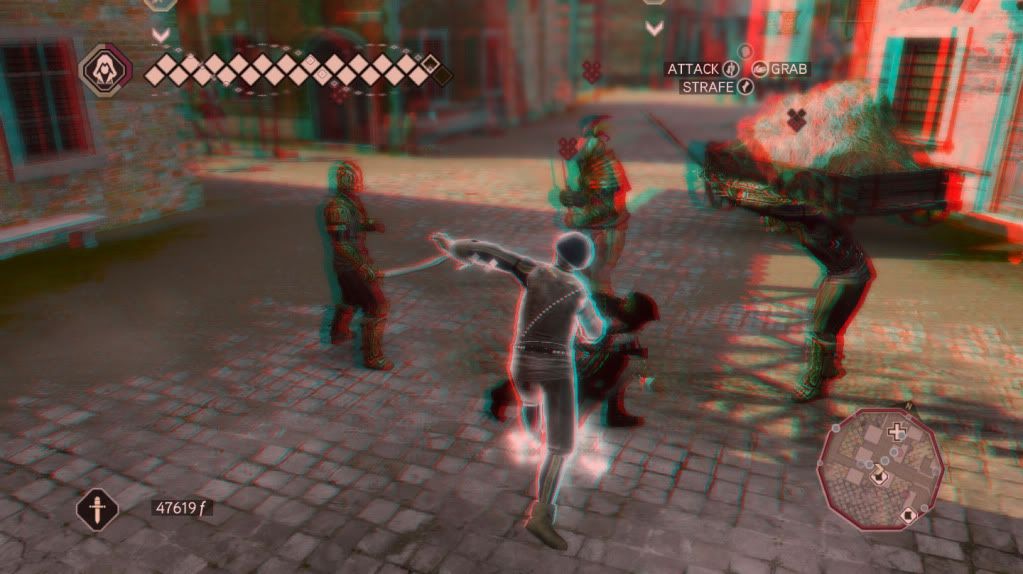
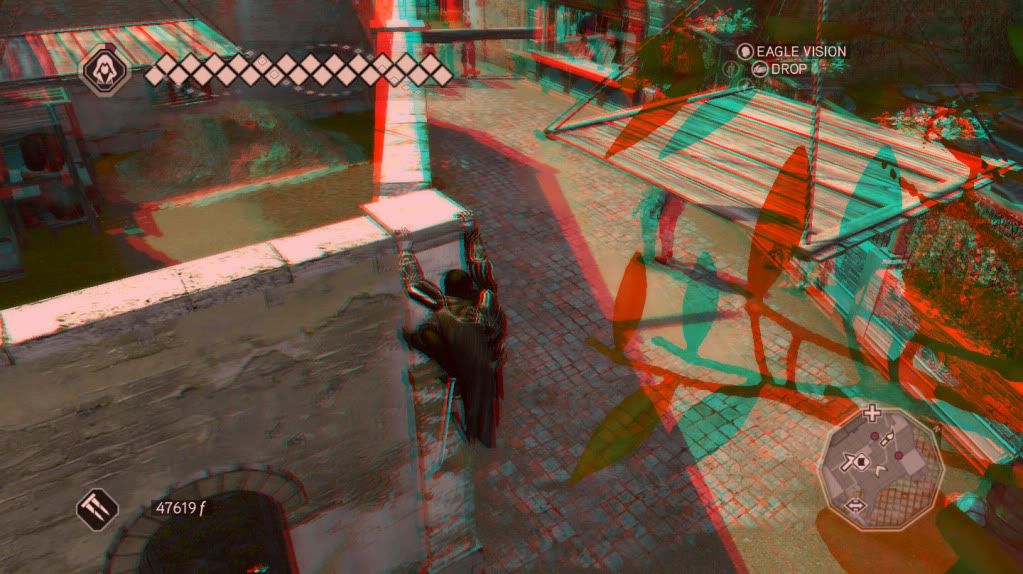
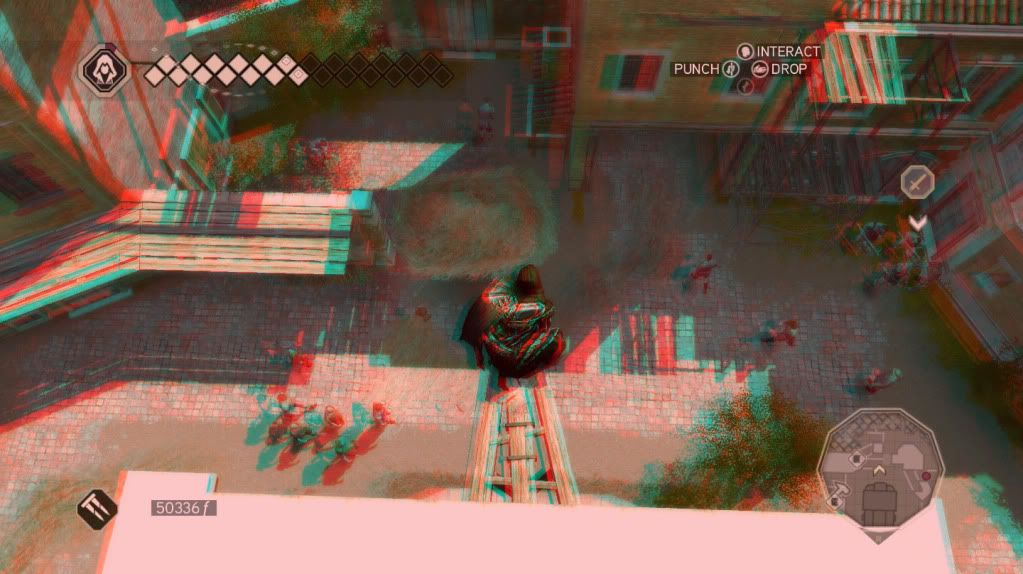
Just like Assassin's Creed (I), Assassin's Creed II also supports 3D. According to Nvidia 3D games, Assassin's Creed (I)'s rating is in 'Excellent' category, while Assassin's Creed II is under 'Good', but it works perfectly! 3D Vision is pretty expensive, while 3D Vision Discover is cheaper, as you only need is a 3D supported graphics card and a 3D Vision Discover glasses or a stereoscopic glasses. For a starter, i recommend to try 3D Vision Discover. I recently bought a 3D Vision Discover glasses on eBay. Check out the 3D screen shots below and of cause, these wont work without a 3D glasses ;)
1. Extract the .rar files 2. Mount AC2_Sp4mm3r.iso or burn it. I prefer mounting using Daemon Tools 3. Install 4. Install the update, assassins_creed_2_1.01_us.exe from the Update folder 5. Copy the two files, SKIDROW.exe and ubiorbitapi_r2.dll from the Crack folder and paste it in the Ubisoft Game Launcher folder
32 bit version: C:\Program Files\Ubisoft\Ubisoft Game Launcher\
64 bit version: C:\Program Files (x86)\Ubisoft\Ubisoft Game Launcher\
6. Play! ...having trouble with saving the settings? Copy and paste the ubiorbitapi_r2.dll from the fix folder to Ubisoft Game Launcher folder. Enjoy!
Posted on Tuesday, September 22, 2009 at 9/22/2009 08:10:00 PM
in
games,
how to,
warez
by
|[ sykez ]|
It’s been a year already since I started playing Counter Strike and most of the times I play with my friends on my dedicated server hosted in my computer. So, here is a complete guide for all you guys who want to make your own Counter Strike (CS) dedicated server on windows, starting from installing and configuring CS, till making a web based ranking system. It doesn’t matter if it’s a pc or a laptop, as long as it has xp or vista. I haven’t tried it on windows 7, but I think it should.
Before we begin, these are the stuffs we’re gona cover in this guide:
Installing Counter-Strike: Source
Creating the server
Configuring the server
Installing Mani Admin Plugin (optional)
Intalling Metamod:Source
Intalling SourceMod
Installing Xampp
Intalling ActivePerl and DBD-mysql
Installing and configuring HLstatsX: CE
A bit of port forwarding
This guide contains two parts. Making the CS server and making the webhost. Okay, so now let’s get it started! ;)
Installing and configuring the CS server
Download and install Counter-Strike: Source (installation instructions will be included). Let’s assume that you’ve installed in C:\Program Files\Counter-Strike Source\
Go to C:\Program Files\Counter-Strike Source\ and look for srcds.exe. Right click and sent to desktop, which makes a shortcut on the desktop.
Go to desktop, rename the srcds.exe shortcut to server, right click on it and go to properties.
In the shortcut tab, add this line in the target field after the srcds.exe" part: -console -game cstrike +maxplayers 30 +map de_dust2 -secure
-console: tells it to run as the console command interface, instead of the GUI, which takes more load than console. +maxplayers 30: how many players can join the game, in this case its 30. +map de_dust2: which map the server is going start with, in this case its de_dust2. -secure: secure the server with Valve Anti Cheat (VAC).
Now it’s time make some basic settings for your server by using the server.cfg file in your C:\Program Files\Counter-Strike Source\cstrike\cfg\. If you don’t have that files, you can create it by using a cfgmaker to help you to generate it easily.
Go to desktop and run the server shortcut. It should show up the console like the command prompt and starts to load some stuffs. If something goes wrong, go back to the step 4. After loading all those stuffs, run your Counter-Strike game, find your server in the LAN tab and join. Play around a bit; it’s just to check whether it works ;) So, basically your dedicated CS server is up and running on LAN, but it might not work through internet, when your friends try to join. Don’t worry; we’ll cover it up later. Shutdown the server by typing, exit in the console.
This is an optional step, you may skip to step 9. Mani Admin Plugin makes it easier to manage the server, like kick, ban, change map, slap and more. Download Mani Admin Plugin and extract it into C:\Program Files\Counter-Strike Source\cstrike\. Go to your C:\Program Files\Counter-Strike Source\cstrike\addons\, open CreateVDF.exe, select cstrike and save it as mani_admin_plugin.vdf.
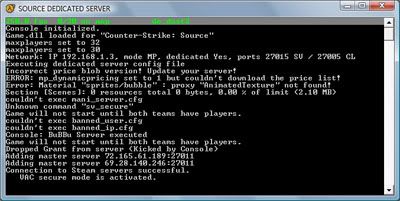
Run the server and let everything gets loaded. If the server crashes, go back to step 7 and try installing a previous version of Mani Admin Plugin like v1.2 Beta O. After the server loads everything, to check whether Mani Admin Plugin was loaded, type: plugin_print ...and it should show something like:
…or if it doesn’t, something is wrong with your installation. For troubleshooting, configuration and commands check the documentation. You can shutdown the server now.
In order to make the HLstatsX in game ranking system to work, you need to have SourceMod, and SourceMod requires Metamod:Source. So let’s download Metamod:Source, installation instructions and troubleshooting can be found in AlliedModders Wiki.
Download SourceMod and extract it into C:\Program Files\Counter-Strike Source\cstrike\. To check whether the addons are loaded, run your server and type: meta list …and it should show this line:
If it works, shutdown the server and proceed to next step, and if it doesn’t work, go back to step 9 or check out the AlliedModders Wiki.
Download the HLstatsX: CE, extract it somewhere, and copy the sourcemod folder into C:\Program Files\Counter-Strike Source\cstrike\addons\.
The game server is now ready, and it’s time to setup the web server part now ;)
Installing and configuring the web server
I’m gona’ use Xampp as the web server pakage. Download and install Xampp as to the instructions.
“HLstatsX Community Edition uses a Perl daemon to parse the log streamed from the game server”, so Perl has to be installed. You can use the Perl addon for Xampp, or use ActivePerl to run the perl scripts. I use ActivePerl and I recommend using it :)
Open up Perl Package Manager (PPM) by typing ppm in the run. Search for dbd-mysql in the PPM, right click on it and install. Go to file, Run Marked Actions and you’re done!
Copy the web folder from the extracted HLstatsX file, into htdocs of your Xampp web server. Rename the folder to stats.
I assume that your web server is working by now. So, go to http://localhost/phpmyadmin/ and make a new database. The username is root and there is no password by default. Let’s call this database, hlstatsx.
Click on the hlstatsx database on the left side which you created, and go to the 'Import' tab on the top. Under the ‘File to import’, browse to the extracted HLstatsX folder, \sql\install.sql and ‘Go’.
Open config.php, in your web server stats folder, with a notepad. Edit the file to match your settings: define("DB_NAME", "hlstatsx"); define("DB_USER", "root"); - the default xampp username define("DB_PASS", ""); - the default xampp password is *none*
Go to http://localhost/stats/hlstats.php?mode=admin and login as admin, with 123456 as the password. Add your server under game settings and play around a bit with the HLstatsX: CE settings. Server Address: your internal network IP Server Port: 27015 Server Name & Rcon Password: See your server.cfg Game Mod: Sourcemod
Go to your C:\Program Files\Counter-Strike Source\cstrike\cfg\ and open autoexec.cfg with a notepad. Add the following lines:
log on logaddress_delall logaddress_add IP:PORT
your IP will be the internal IP and the port can be 27500.
Copy the perl folder from the extracted HLstatsX to the stats web server folder. Open hlstats.conf with a notepad and edit it to match your settings: DBHost "localhost" DBUsername "root" DBPassword "" DBName "hlstatsx" Port 27500
Open up notepad and paste the following line: perl hlstats.pl ..save it as hlx_run.cmd in that folder. You may create a shortcut for the hlx_run.cmd in your desktop for easy use. Try running it. If it shows an error and closes, try checking your hlstats.conf, or if there is no error and if it doesn’t closes, it’s working!
Your game server and web server is now ready, but still you’re not done yet! ;) The last part is to open or forward your ports. To do that, you’ve to login into your router and set the ports. Most of the routers have the configuration for the web server and for Counter-Strike too, but if you don’t have or you don’t know, you can go to PortForward.com to get it done :)
For Counter-Strike server: Protocol / Port start - Port end / Port Map UDP / 1200-1200 / 1200 UDP / 27000-27015 / 27000 TCP / 27020-27039 / 27020
For web server: Protocol / Port start - Port end / Port Map TCP / 80-80 / 80 TCP / 443-443 / 443
You can check whether your web server is working by going to Hidemyass.com, enter your external IP and browse. You can get your external IP by going to Whatismyip.com. If you can access, that means its working! Once you are done, it’s time to finally start the server.
Run the hlx_run and the CS server shortcut from the desktop.
Run your CS game, join your server and add some bots.
Minimize the game, go to http://localhost/stats/ and check the players and played times whether it matches. If it does, it’s working correctly, if it doesn’t, go back and check your steps carefully, because something is really screwed up!
Tell your friends your IP and let the fun begin! :D If your IP is dynamic, its’ kinda annoying when your IP changes every time. So, you can use a free DNS service like afraid.org, which has many different kewl domains and they have a free DNS updating software so that, when every time your IP changes, it updates your DNS settings.
So, this is it! I hope this guide helped to make your own CS dedicated server and also about the web server too. If you have any questions, please drop a comment.